Watch your IPTV playlist on Apple TV
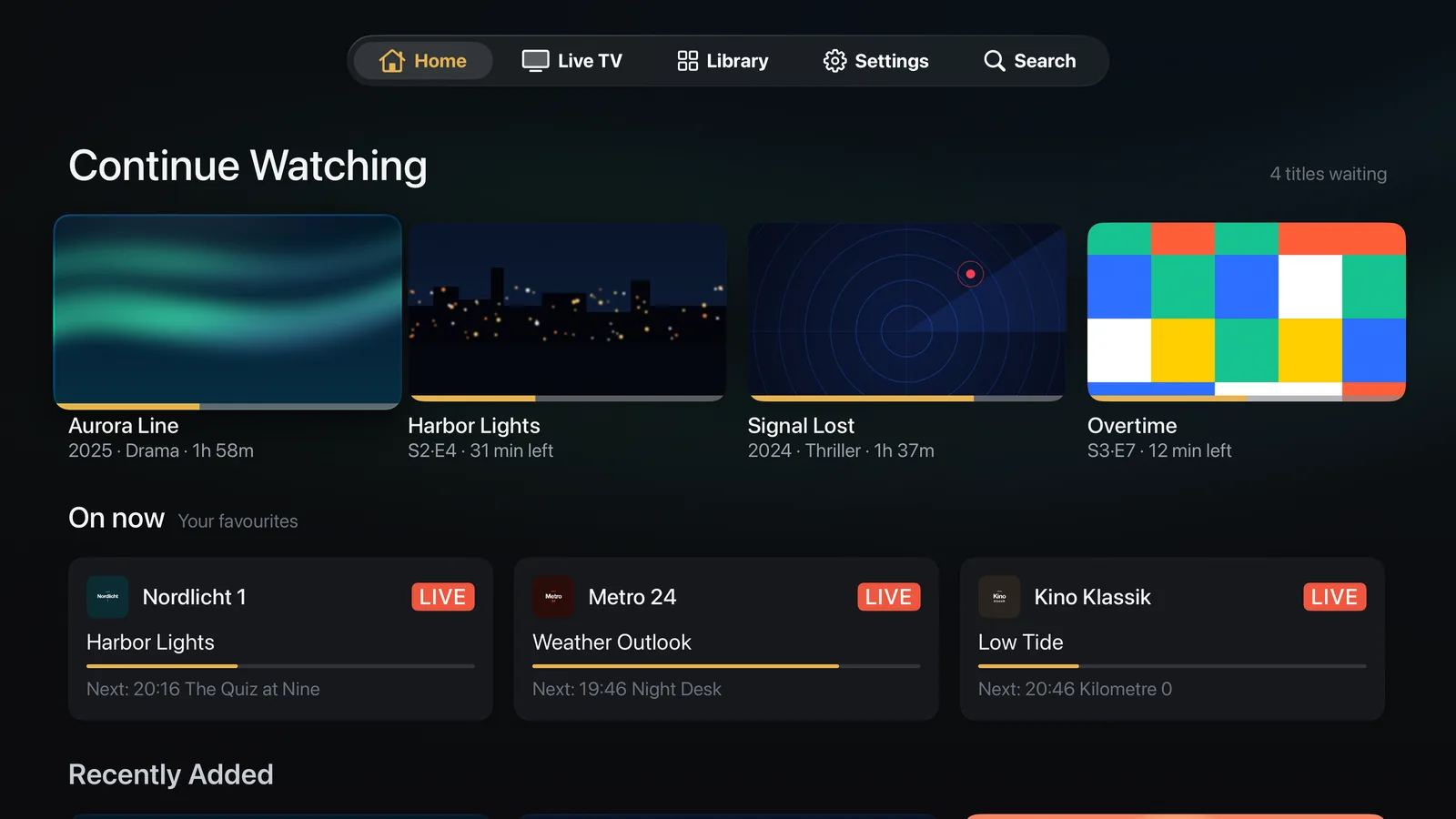
Interlace is an IPTV app for Apple TV that plays the M3U playlist from your provider — on its own or next to your Plex library — with channel groups, a programme guide and live pause, laid out for the Siri Remote.

Before you start
- No Plex needed. Interlace works with IPTV alone; if you also have a Plex Media Server, it sits right next to your channels.
- The M3U playlist URL from your IPTV provider — or an Xtream Codes login. Optionally an XMLTV guide URL.
- Interlace doesn’t provide any channels — you bring your own IPTV provider and playlist.
Set up your M3U playlist on Apple TV
- Install Interlace on your Apple TV from the App Store and open it.
- On the first screen, choose “Set up on this TV”. Already set up on iPhone or iPad? Choose “Sync from iCloud” instead and go straight to step 5.
- No Plex? Choose “I don't use Plex” and go on with step 4. Using Plex too? Sign in to Plex with a code: open plex.tv/link on your phone or computer and enter the code shown on the TV.
- In the IPTV form (or later under Settings › IPTV), pick “M3U URL”. Fill in “Playlist name” and “M3U playlist URL”, add your guide under “EPG / XMLTV URL (optional)” if you have one, then select “Connect”.
- Open the Live TV tab. Your channels appear in the groups your provider set up.
What you get on the TV
- Live TV, sorted. Favourites, All groups and the Guide. Press and hold a channel to pin it — pinned channels also fill On now on the Home screen.
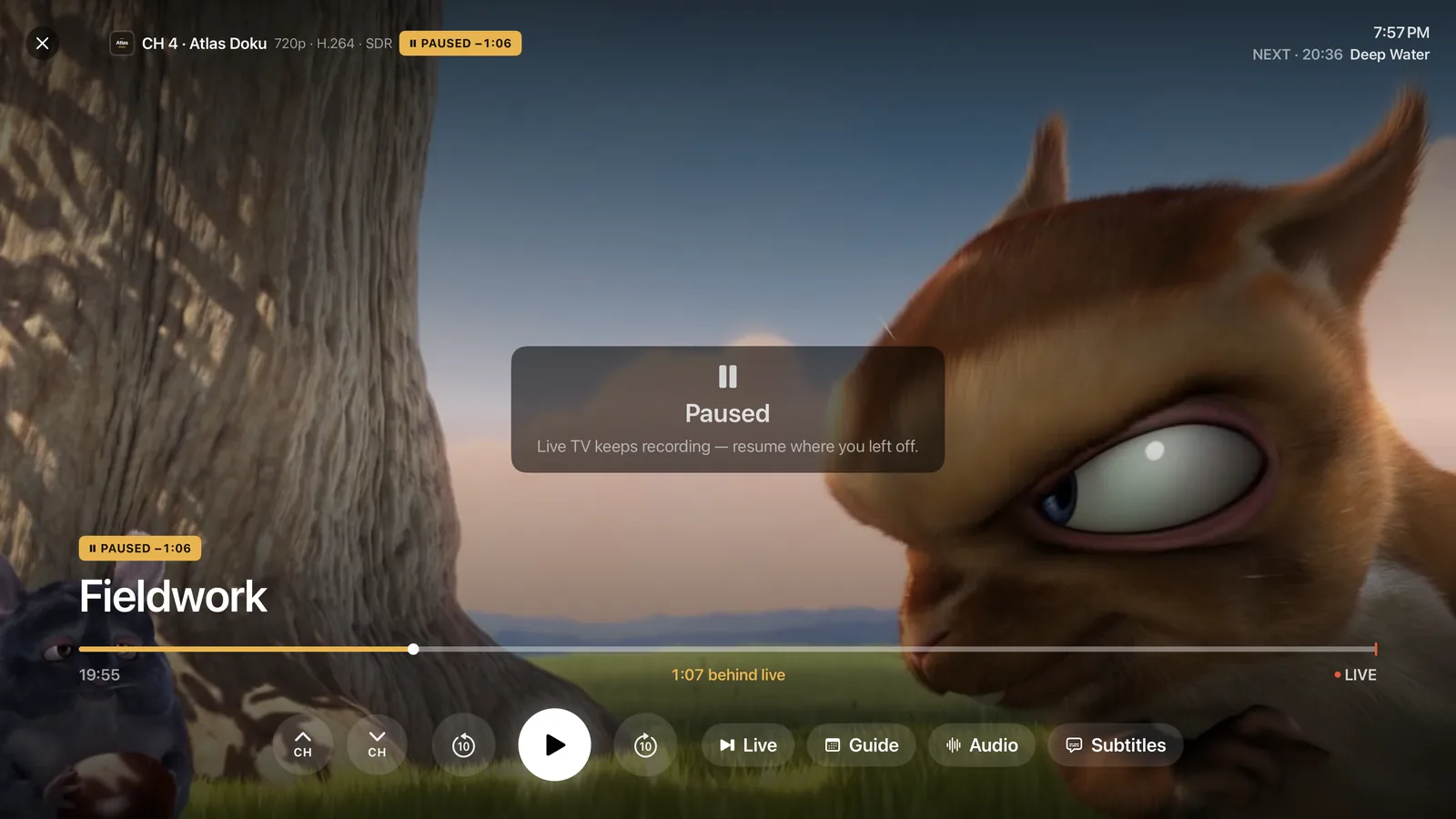
- Pause live TV. Live TV keeps recording while you pause, so you resume where you left off — or jump back to Live.
- A player made for channels. Channel up and down, the guide, audio and subtitle tracks, all from the Siri Remote.
- Picture in Picture. Keep a second channel in the corner while something else plays.
- Catch-up. If your provider keeps an archive, switch on “Catch-up & replay” in Settings › IPTV to replay past programmes from the guide.
The same setup works on iPhone, iPad and Mac — one purchase covers all four.
FAQ
01Can I use Interlace for IPTV without Plex?
Yes. Skip the Plex step (“I don't use Plex” on Apple TV, “Skip — I don't use Plex” on iPhone and iPad) and set up only your IPTV playlist. You can connect a Plex server later under Settings.
02Does Interlace come with channels?
No. Interlace is a player. Channels come from the M3U playlist or Xtream Codes login of your own IPTV provider.
03Can I load a playlist file instead of a URL?
On iPhone, iPad and Mac, Settings › IPTV has “Import playlist file…” and “Import guide file…”. On Apple TV, enter a URL.
04Where do I find the guide?
In the Live TV tab under “Guide”, and from the “Guide” button in the player. See the EPG setup guide for adding an XMLTV URL.
Your playlist, on the big screen.
Free for 14 days. Then 14,99 € a year or 39,99 € once — one purchase for iPhone, iPad, Apple TV and Mac, Family Sharing included.